Setup
- An
Administratormust enable theDevelopment PlanModule in the Administration section of the system.


- An
Administratorshould then assign the role ofDevelopment Plan Managerto one or more users of the system.
- An
AdministratororDevelopment Plan Managershould assign the role ofDevelopment Plan Ownerto other members of staff. Doing so means that they can then be assigned ownership of individualDevelopment Plans,Development Plan Areas,InitiativesandActions.

- A
Development Plan Managershould create newDevelopment Themes.
- A
Development Plan Managershould create a newDevelopment Plan(or copy an existing one**) and assignDevelopment Areasfrom the availableThemes.


- A
Development Plan Managershould assign anOwner, and optionally aSupporterto eachArea. The defaultOwneris theManagerwho created theArea. AreaOwners and Supportersshould then createInitiativesfor their ownAreaand assignOwners and Supportersto these intiatives.


InitiativeOwners and Supporterscan then addRationale,MonitoringandResourcesto theirInitiatives.
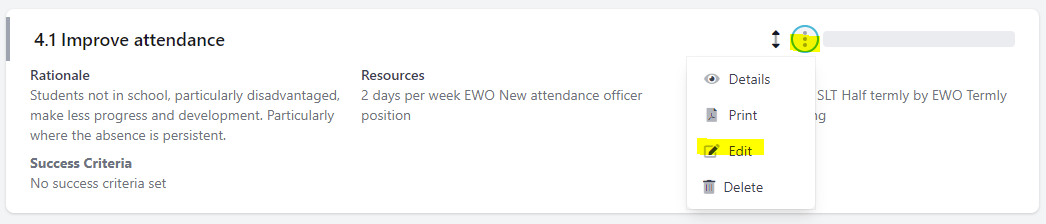
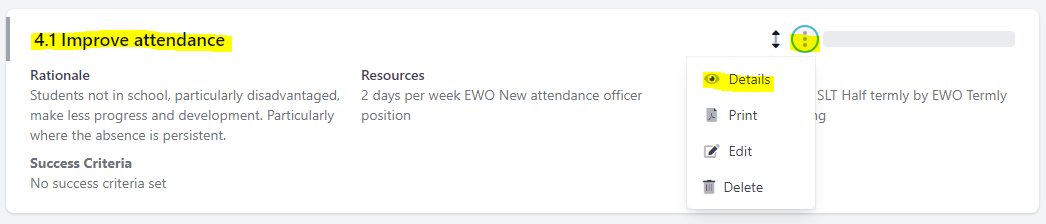
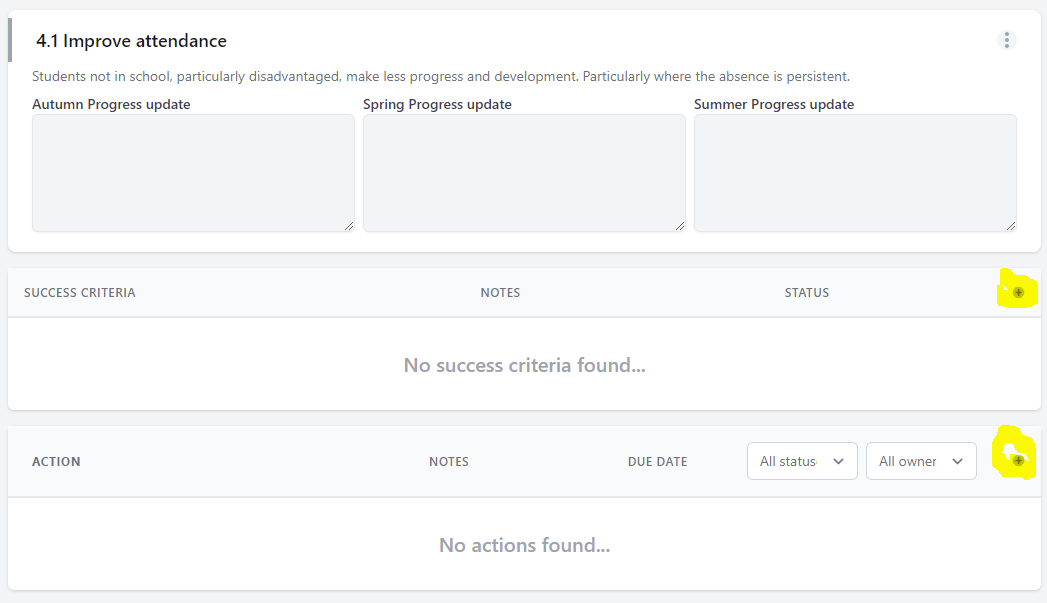
InitiativeOwners and Supporterscan then addSuccess CriteriaandActionsto theirInitiativesfrom the details page. This can be accessed from the menu or directly from the initiative name.
-
ActionOwnerscan update the completionStatusof their actions and addNotesto them too. -
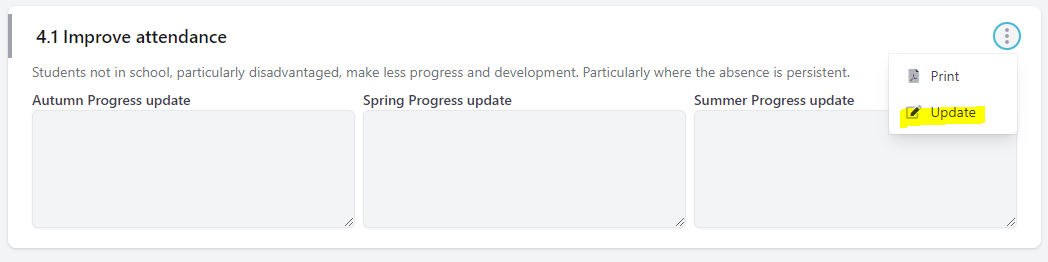
InitiativeOwnerscan add termly progress updates if required.